Traceability
Managing inventory and holds
How to read your stock levels, place a lot on hold, record waste, adjust counts, and add a manual lot.
The Inventory page is your live picture of what's on hand. It tracks every ingredient lot you've received, what's left of each, and when it expires, and it's where you place holds, record waste, and correct counts. Keeping it accurate is what makes lot selection during production trustworthy.
Raw materials and finished goods
Inventory has two tabs:
- Raw Materials: your ingredient lots, grouped by ingredient. This is where day-to-day stock management happens.
- Finished Goods: the finished-good lots your batches have produced, with their lot code, batch, quantity, and status. Bulk left over from a batch appears here as its own lot; when you're ready, use the Package action on that row to turn it into packaged units.
Reading stock levels
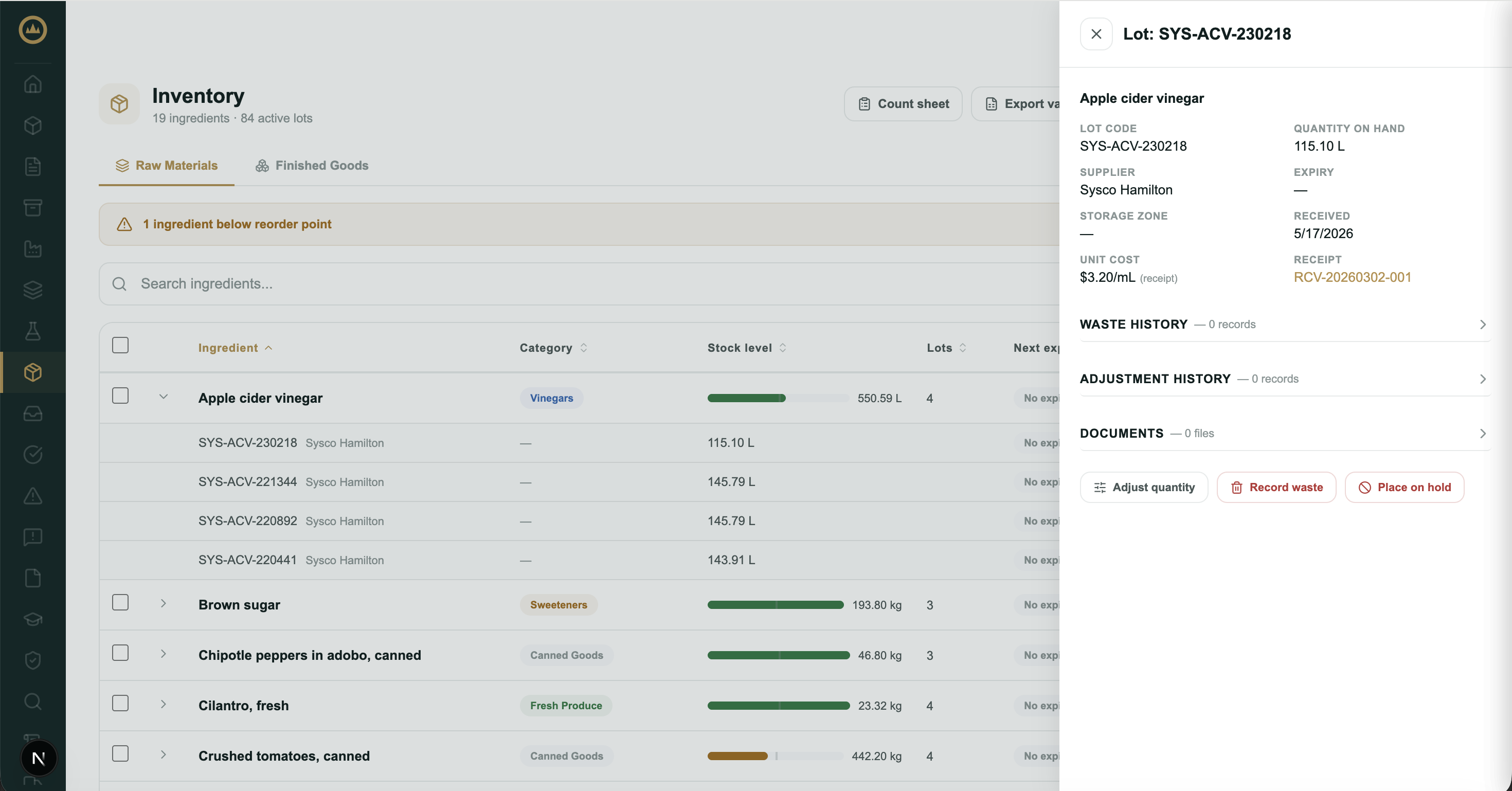
On the Raw Materials tab, each ingredient shows a stock-level gauge against its reorder point, how many lots are on hand, the next expiry date, and a status: In stock, Low stock, Out of stock, or Utility. When anything is at or below its reorder point, a banner offers a one-tap "Show low stock only" filter. Click an ingredient to expand its individual lots.
Lot details
Click a lot to open its drawer. You'll see its lot code, quantity on hand, supplier, expiry, storage zone, when it was received, and its documents (this is where a per-lot certificate of analysis lives). The drawer also keeps that lot's waste and adjustment history, and it's where every per-lot action starts.
Placing a lot on hold
A hold quarantines a lot so it can't be used until you clear it, for a suspected quality problem, a pending test result, or a supplier issue.
- Open the lot and place the hold
In the lot drawer, select Place on hold and enter a reason. The reason is required; it's recorded with the hold.
- The lot is flagged and blocked
The lot shows an On hold badge with your reason, and Crown won't let it be selected for a batch until you release it.
- Release the hold when resolved
When the concern is cleared, open the lot and select Release hold, then enter the reason you're releasing it. The release and its reason are recorded in the lot's history.
Recording waste
To write off product you've discarded, open the lot and select Record waste. Enter the quantity, choose a reason (expired, damaged, contaminated, spillage, quality reject, overproduction, or other), and add notes. Crown reduces the lot's on-hand quantity and keeps the waste on its history.
Adjusting a count
When a physical count doesn't match what Crown shows, open the lot and select Adjust quantity. Enter the corrected on-hand figure and a reason (count variance, correction, transfer, return, sample, shrinkage, or other). Crown records the before and after so the change is traceable.
Adding a manual lot
Most lots enter through receiving, which is the recommended path. For stock that didn't come through a receipt, such as opening balances when you first set up Crown, use Add lot. Enter the ingredient, lot code, quantity, and any expiry, zone, or supplier you have on hand.
What's next
Accurate inventory feeds straight into production. See Assigning lots to a batch for how lots are consumed, and How lot traceability works for how it all connects.