Recipes
Adding ingredients and steps
A complete guide to Crown's six recipe item types: ingredients, tasks, measurements, holds, verifications, and timestamps.
A recipe version in Crown is built from stages, and each stage contains ordered items. Items are the individual steps your production record captures: ingredient additions, tasks, measurements, holds, verifications, and timestamps. This article covers the full item set and how to use each type effectively.
Editing is available in draft status only. Approved and archived versions are read-only except for the recipe description and notes, which remain editable in any status.
Adding a stage
Before adding items, you need at least one stage. At the bottom of the recipe editor (draft only), an Add stage button opens a choice between two stage types:
- Active stage: a standard production step such as mixing, filling, labelling, or any sequential process phase.
- Holding stage: a maturation or conditioning phase with its own duration, check-in schedule, location, environment, and exit condition.
Active vs. holding is a meaningful distinction. Items inside a holding stage are the tasks and measurements that repeat at each check-in during the hold. The hold itself is configured at the stage level, not as an item.
From template. If you have stage templates set up, a second button opens the template picker. Imported stages are a one-time copy; if the source template is updated later, the stage shows an amber drift badge indicating it's out of sync.
Stages can be reordered using the up/down chevrons in the stage header.
Adding items
Each expanded stage (draft only) shows an Add row at the bottom with a chip for each item type. The flow differs by type:
Ingredients open a quick-add panel, a rapid-entry surface where you select the ingredient, enter quantity and unit, and hit Add. The panel stays open and resets after each addition, showing a running count of how many you've added. Click Done when finished.
All other item types create a row immediately with empty fields. Click the row to expand it into the full edit form. Save or cancel to close.
Items can be reordered within a stage using up/down chevrons on each row. Items cannot be moved between stages or duplicated.
Ingredient
An ingredient item records what goes into a stage: the ingredient, how much, and whether the quantity is fixed or variable.
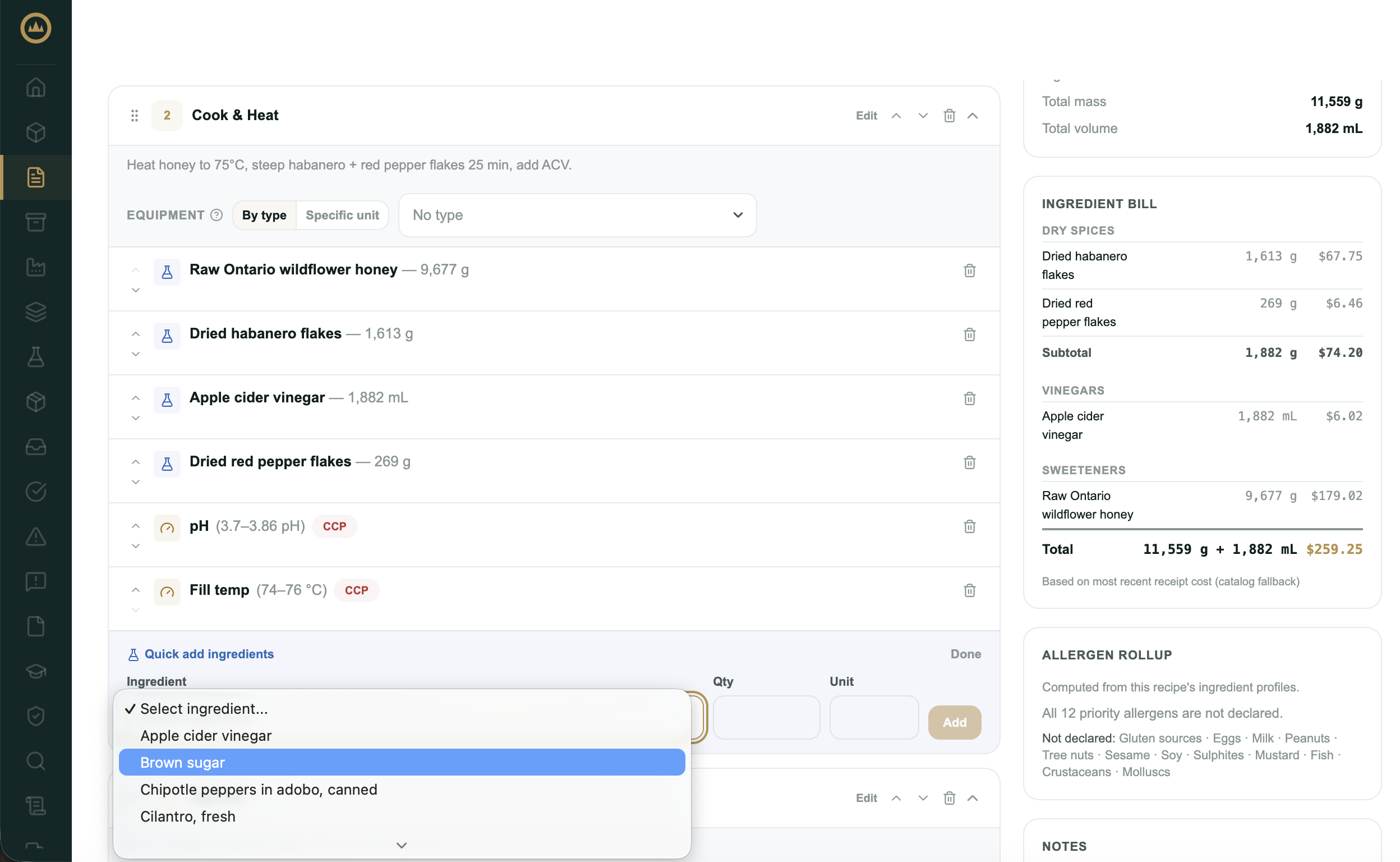
Ingredient: select from your registered ingredient catalogue. Selecting an ingredient automatically sets the unit to that ingredient's default. The selector is a plain dropdown with no search or typeahead, so if your catalogue is large, scroll carefully.
Quantity: the amount to add. There is no minimum, maximum, or negative validation in the editor. At batch time, Crown shows an amber warning at 5% over the specified quantity and a red warning beyond that, but the editor itself doesn't restrict entry.
Unit: family-scoped to the ingredient's measurement type (mass, volume, or count) once an ingredient is selected. If no ingredient is selected, the unit falls back to a free-text input.
Mode: Fixed or Variable.
- Fixed: the quantity is a precise spec. This is the default and covers most ingredients.
- Variable: the quantity is approximate and the operator uses a sensory or qualitative target to guide addition. When Variable is selected, a Target parameter field appears for a description (e.g. "Target: deep red-orange"). At batch time, variable items are labelled in amber as a reminder that the quantity is a guide, not a hard spec.
Task
A task is a manual instruction the operator must acknowledge during production: a step that has no measurable output but needs to be recorded as done.
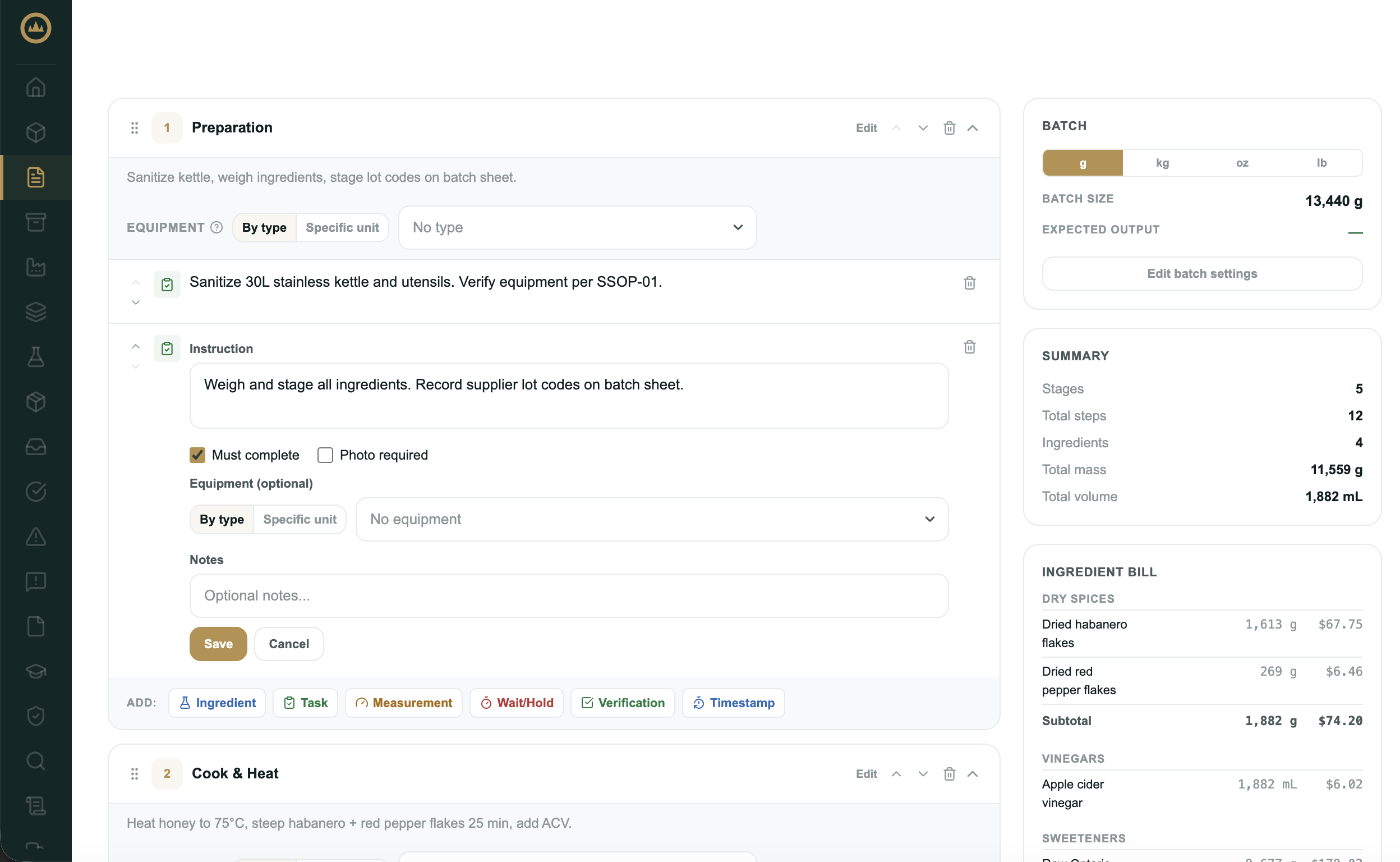
Instruction: describe what needs to be done. Be specific enough that a new operator can follow the step without prior knowledge.
Must complete: defaults on. When checked, the task must be acknowledged before the stage can advance. An operator cannot bypass a must-complete task; it blocks stage completion until it's marked done. Uncheck it for informational steps that don't require acknowledgement to continue.
Photo required: when checked, the operator must capture or upload a photo before the task can be marked complete. Use this for steps where visual evidence is part of your record, such as seal integrity, label placement, fill level, or equipment condition.
Equipment: optionally reference an equipment type or specific unit. Hidden if your facility has no registered equipment.
Reference images: optionally attach photos showing how the completed step should look. Operators see them beside the instructions on the production floor, view-only. Unlike Photo required, which asks the operator to capture evidence, reference images are guidance you provide up front.
Measurement
A measurement item records a parameter reading (pH, Brix, temperature, fill volume, unit count) and evaluates it against a target range. Measurement is the most configurable item type.
Measurement purpose
The first field determines what the measurement is tracking and controls which downstream fields appear:
Generic: any process parameter (pH, Brix, temperature, water activity, weight). All fields available.
Finished good count: counts discrete units produced in this stage (e.g. bottles filled). Requires selecting a Linked SKU from the product's SKU list. Unit is locked to count.
Finished good volume: records total volume output from this stage. Crown folds it into the batch's recorded output when you mark production complete, the same way finished good count does. Unit is locked to volume canonical.
Parameter and range
Parameter name: a label for what you're measuring (e.g. "pH", "Fill weight", "Brix"). Free text.
Unit: free text for generic measurements (pH, °C, Brix, g). Locked and auto-set for finished good count and volume measurements.
Min / Max: the acceptable range. Both optional, both accept decimals. Crown doesn't validate that min is less than max in the editor, so set them carefully.
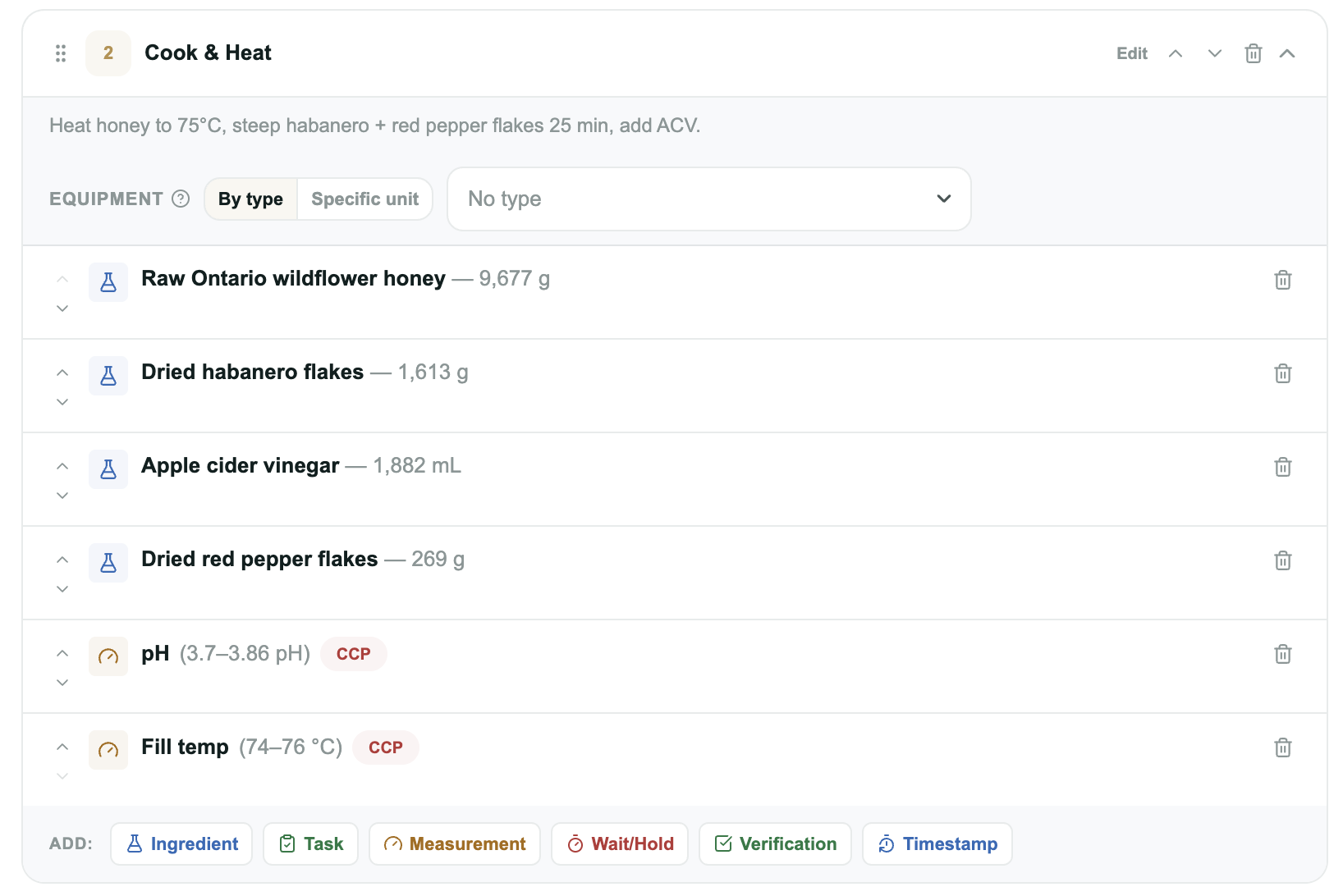
CCP designation
The CCP checkbox marks this measurement as a Critical Control Point.
Only designate a measurement as a CCP if an out-of-range result should always trigger a formal deviation record. Use min/max without the CCP flag for monitoring points where the operator should be informed but not blocked.
Tied to ingredient
For generic measurements, an optional Tied to ingredient field links the measurement to a specific ingredient in the recipe. If that ingredient is substituted or skipped at batch time, this measurement is automatically skipped as well. Useful for parameters that only apply when a particular ingredient is present.
Monitoring method
The monitoring method records how the measurement is taken. Four options:
- By type: reference an equipment type (e.g. any pH meter). The batch record captures which specific unit was used at production time.
- Specific unit: reference a named instrument (e.g. Bench pH meter PH-001). Binds the measurement to that exact unit. At batch time, an overdue calibration badge appears on the item if the instrument is past its calibration due date.
- Test method or kit: reference a test kit or method (name, range, brand). Use for colourimetric tests, test strips, or documented analytical methods.
- None: no monitoring method specified.
Wait / Hold
A wait/hold item introduces a timed pause or condition-based hold within an active stage: "wait 30 minutes before continuing," or "hold until the aroma is fully developed."
Hold type: Duration hold (fixed time) or Condition hold (until a condition is met).
For a Duration hold: enter minimum and maximum hold times and select a unit (Minutes, Hours, Days, or Weeks). A range rather than a fixed time communicates acceptable variance.
For a Condition hold: enter a description of the condition that ends the hold (e.g. "Final gravity ≤ 1.012", "Aroma fully developed"). The operator decides when the condition is met.
Check in every: available for both hold types. Sets a check-in interval (min/max + unit). If a check-in frequency is set, an At each check-in field appears, a required description of what the operator should do or record at each check-in. Leave check-in blank for unmonitored holds.
Equipment: optionally bind the hold to an equipment type or a specific vessel (a tank or barrel, for example). Batches started from the recipe carry the binding, and the hold appears at that vessel's spot on the dashboard's live plant floor.
Verification
A verification item is a pass/fail checkpoint: something the operator confirms is true before the stage continues.
Label: a short name for the checkpoint (e.g. "Confirm fill line seal is intact").
Description: what exactly the operator is verifying.
Required: defaults on. Required verifications must be confirmed before the stage can complete; they cannot be bypassed. When unchecked, the verification is marked Optional and can be skipped without blocking stage completion. Use Optional for checks that are good practice but not process-critical.
Equipment: optionally reference an equipment type or specific unit used to perform the verification.
Timestamp
A timestamp captures the exact moment something happens during production: cook start, cooling began, or fill line running.
Label: a name for the time point (e.g. "Cook start time", "Cooling began at").
Instruction: guidance for when the operator should tap Record (e.g. "At rolling boil, before adding hops").
Equipment: optionally reference equipment associated with this time point.
At batch time, the operator sees a Record now button. A single tap writes the current timestamp. After recording, an Update button allows re-recording, and the new time overwrites the previous one. No typed time entry is available.
Step effects
Every item type except ingredient additions has a When this step is completed section in its edit form: two optional checkboxes that tie a batch-level outcome to the moment the step is finished on the production floor.
Start the best-before clock: shelf life counts from this step. Flag your fill or bottling step, and every batch's best-before date counts from the moment that step is completed.
Assign the batch's lot code the moment this step is done: the lot code is committed as soon as the operator completes the step. Date-based lot codes then reflect the day the step actually happened, and carton labels can be printed mid-run once the code is assigned.
Only one step per version can hold each effect. Checking an effect on a different step moves it there when you save, and the editor shows an amber warning naming the step it's moving from. A single step can carry both effects; expiry and lot code usually anchor to the same fill step.
If no step is flagged (or the flagged step is skipped), the defaults apply: the best-before date counts from the product's shelf-life setting, and the lot code is assigned when the batch completes production, or earlier using the batch's Assign Lot Code button.
Steps holding an effect show a Best-before anchor or Assigns lot code badge, both in the recipe editor and on the step as operators see it on the production floor.
Approved recipe versions
When a recipe version is approved, the editing controls disappear: there are no greyed-out fields, just no controls to interact with. Items, stages, and their configurations are fully locked.
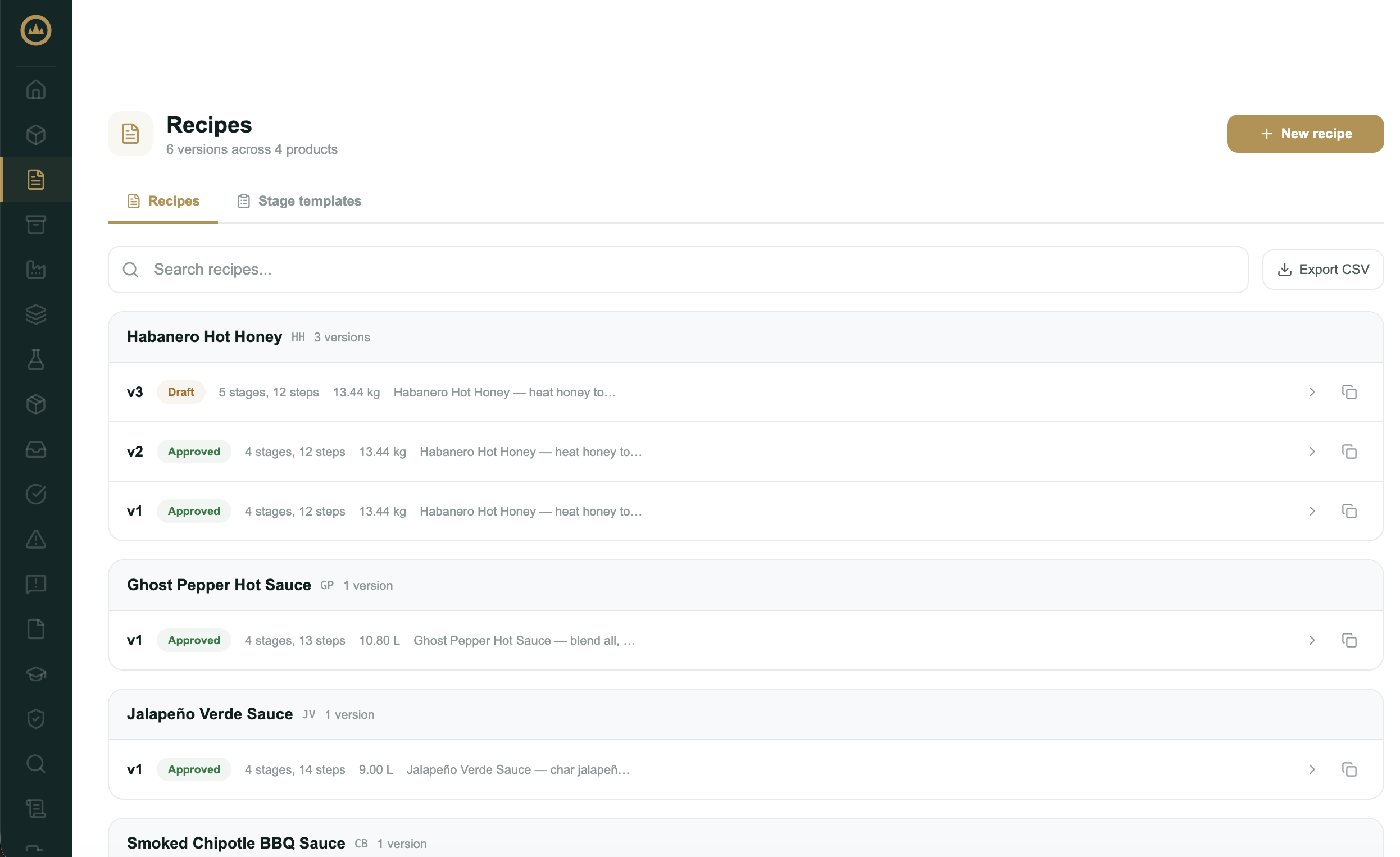
Two surfaces remain editable in any status:
Recipe description: the version-level description field is always editable. Changes save immediately without affecting the version's approved status.
Recipe notes: the notes log in the sidebar remains open. You can add a note in any status, and delete one (with confirmation) if it was added in error. Notes are attributed to the author and timestamped, but they don't alter the recipe record itself.
Item-level notes are part of the item form, which is only accessible in draft status, so they cannot be edited on an approved version.