Getting Started
Setting up your suppliers
How to add suppliers in Crown, set their approval status, and record qualification details.
A supplier is anyone you buy ingredients from. The supplier record is the start of your traceability chain: every ingredient lot you receive is tied to a supplier, so a complete supplier list is what lets you answer "where did this come from?" later. Setting them up is quick, and you can flesh out the detail over time.
Adding a supplier
- Open Suppliers and add one
Select Suppliers from the main menu, then click '+ Add supplier'. The supplier drawer opens on the right.
- Enter the company name
The company name is the only required field (for example, "Sunrise Honey Co."). Everything else can be filled in now or later.
- Set the approval status and save
Choose an approval status, add contact and address details if you have them, and save. The supplier is immediately available to select when receiving.
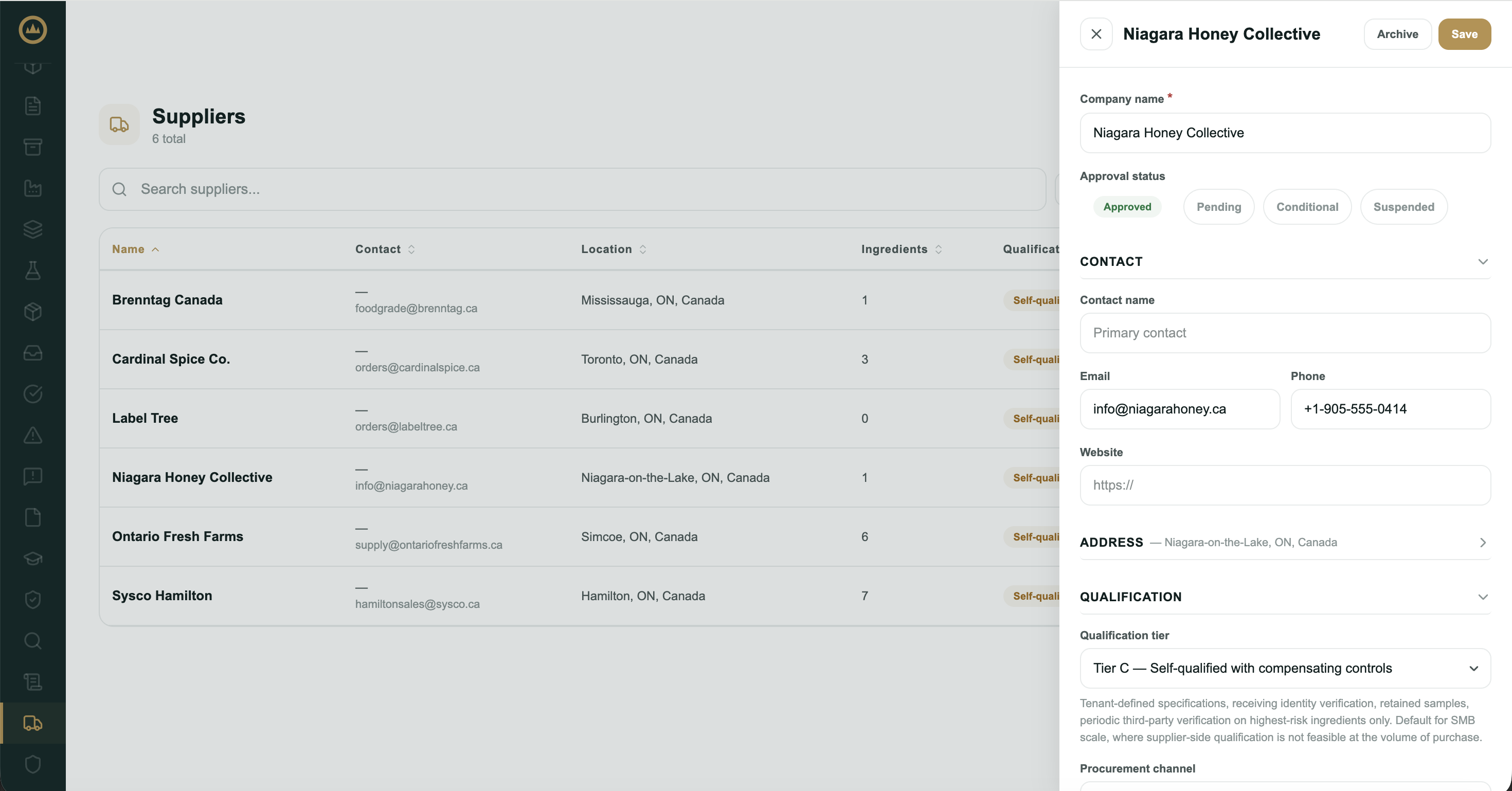
Approval status
Every supplier carries an approval status, which you control:
- Approved: cleared for use.
- Pending: not yet reviewed. New suppliers start here.
- Conditional: usable with reservations you've noted.
- Suspended: flagged not to use.
The status is a label you manage; Crown doesn't block receiving based on it. Use it to reflect where each supplier stands in your own approval process, and filter the supplier list by it to see what needs review.
Ingredient links
Crown can record which ingredients come from which suppliers. These links show as read-only views: the ingredient drawer has a Linked suppliers section listing each supplier for that ingredient, and the supplier drawer has a Linked ingredients section with the count of ingredients linked to it. Both sections appear only when links already exist on your records (for example, records brought across during a data migration); there is no control in either drawer to add or remove a link.
These links don't pre-fill anything at receiving. When you record a shipment, pick the supplier from the search field at the top of the receipt; if you start from a scanned packing slip or invoice, Scan reads the supplier name off the document and matches it to your supplier list for you.
Qualification details
The supplier drawer has a qualification section that records how thoroughly you've vetted a supplier. Three fields feed it.
Qualification tier sets how rigorously the supplier is qualified:
- Full: a certificate of analysis on file for every lot, plus a current supplier audit or questionnaire. The textbook approach, typical for institutional suppliers and larger producers.
- Partial: spec sheets on file, with a certificate of analysis available on request. Your receiving checks and annual verification carry more of the weight.
- Self-qualified: your own written specifications, identity checks at receiving, retained samples, and periodic third-party testing on your highest-risk ingredients only. The realistic default at small-batch scale, where full supplier-side qualification often isn't feasible.
Procurement channel records how you actually buy from them: manufacturer direct, distributor/wholesaler, specialty retail, or a consumer marketplace. The channel shapes what qualification is realistic and who your "supplier of record" is; for a marketplace listing, that's the brand, not the marketplace.
Notes captures anything else about how you've vetted the supplier.
Together these feed your preventive control plan when you generate it.
Documents
Attach supplier-level documents (food-safety certificates, audit reports, approval letters, insurance) in the Documents section of the supplier drawer.
Archiving a supplier
If you stop using a supplier, archive it from its drawer. Archived suppliers drop out of the supplier picker at receiving, but their existing ingredient links, past receipts, and cost history stay intact, so your historical records and traceability are never broken.
What's next
With suppliers in place, set up your ingredients in Setting up your ingredients, then record your first delivery in Receiving an ingredient shipment.