Recipes
Migrating existing recipes into Crown
How to use an AI assistant to reformat your existing recipe documents into Crown's structure, reducing manual data entry.
If you have existing recipes in PDFs, Word documents, or spreadsheets, an AI assistant can reformat them into Crown's structure before you start entering data, significantly reducing the time to get your first recipe live.
This article gives you a prompt to use with any major AI assistant (ChatGPT, Claude, Gemini, or similar). The output still requires manual entry into Crown; this is a formatting aid, not an import feature.
Before you start
For the migration prompt to produce useful output, a few things need to be in place in Crown first.
Your ingredients must be registered. Crown's recipe builder requires selecting from your existing ingredient catalogue; it doesn't accept free-form ingredient names. The AI output will use the names from your document, but when you enter data into Crown, those names need to match your registered ingredients exactly. See Setting up your ingredients.
Your equipment must be registered. If any stages reference specific equipment (a pH meter, a filling line, a named tank), that equipment must exist in Crown before it can be selected. See Setting up your equipment.
Your product must exist in Crown. A recipe version belongs to a parent product. If you haven't created the product yet, do that first; the product's measurement type (mass, volume, or count) determines which unit family is available throughout the recipe.
Crown's recipe structure
Crown's recipe model is more expressive than a typical recipe document. A recipe version is made up of ordered stages, and each stage contains ordered items. There are six item types:
| Item type | Use for |
|---|---|
| Ingredient | An ingredient addition with quantity and unit |
| Task | A manual step the operator must complete (e.g. "Label all bottles") |
| Measurement | A recorded parameter with a target range (pH, Brix, temperature). Can be designated a CCP |
| Wait/Hold | A timed or condition-based hold within a stage |
| Verification | A pass/fail checkpoint requiring confirmation |
| Timestamp | A single-tap time record with no pass/fail criteria |
Most existing recipe documents only capture ingredients and basic steps. The migration prompt identifies which Crown item type best fits each element of your document.
The migration prompt
Copy everything below and paste it into your preferred AI assistant, followed immediately by your recipe document.
I'm migrating an existing recipe into Crown QMS, a food manufacturing
compliance platform. Reformat the recipe I paste below to exactly match
Crown's data model. Output only the structured data — no preamble,
no commentary.

─── CROWN'S DATA MODEL ───────────────────────────────────────────

A recipe version belongs to a product. It contains ordered stages.
Each stage contains ordered items.

Stage types:
  Active  — a standard production step (mixing, filling, labelling, etc.)
  Holding — a timed or condition-based hold (refrigeration, conditioning,
            fermentation, etc.)

Item types within a stage:
  INGREDIENT   — an ingredient addition (name, quantity, unit)
  TASK         — a manual instruction the operator completes
  MEASUREMENT  — a recorded parameter with a target range (pH, Brix,
                 temperature, weight, etc.)
  WAIT/HOLD    — a shorter hold within an active stage
  VERIFICATION — a pass/fail checkpoint
  TIMESTAMP    — a single time-point record

Units are family-scoped to the ingredient or product type:
  Mass:        g, kg, oz, lb
  Volume:      mL, L, fl oz, gal (US)
  Count:       ea (only)
  Measurement parameters (pH, Brix, temp, etc.): free-text unit

Equipment per stage (optional — a stage takes one or neither, not both):
  By type:       a general capability (e.g. "Holding tank", "pH meter")
  Specific unit: a named piece of equipment (e.g. "pH Meter PH-001")
  Default to By type if the original recipe does not name a specific unit.

Do NOT include allergen information. Allergens are configured on the
ingredient record in Crown, not the recipe.

Express yield as a single percentage (e.g. 94%).

─── OUTPUT FORMAT ────────────────────────────────────────────────

Product
  Name:              [from the recipe title or document]
  Measurement type:  [mass / volume / count]
  Default unit:      [g / mL / ea]

Recipe version
  Batch size:        [number] [unit]
  Expected yield:    [%]
  Description:       [one sentence — what this recipe produces]

Stages (in order):

  Stage [N]: [Name]
  Type:        [active / holding]
  Description: [optional — only if meaningful context exists]
  Equipment:   [By type: "name" / Specific: "name (code)" / None]

  Items (in order):
    [N]. INGREDIENT   Name: [name] | Qty: [number] [unit]
    [N]. TASK         Instruction: [text] | Must complete: [yes / no]
    [N]. MEASUREMENT  Parameter: [name] | Unit: [unit] | Min: [value] | Max: [value] | CCP: [yes / no]
    [N]. WAIT/HOLD    Duration: [min]–[max] [unit] | OR Condition: [text]
    [N]. VERIFICATION Label: [text] | Description: [text]
    [N]. TIMESTAMP    Label: [text]

  For HOLDING stages, also include:
    Duration:         [min]–[max] [unit]
    Check in every:   [min]–[max] [unit] (if applicable)
    Location/vessel:  [text] (if specified)
    Environment:      [text] (e.g. "2–6°C", "dark and dry")
    Exit condition:   [text] (e.g. "final gravity ≤ 1.012")

─── FLAGS ────────────────────────────────────────────────────────

List at the end:
  - Ingredients where the unit family is ambiguous
  - Steps where order is unclear
  - Measurements that may be CCPs but aren't explicitly flagged as such
  - Any equipment referenced that would need to be registered in Crown
  - Anything that doesn't cleanly map to a Crown item type
  - Yield if it cannot be expressed as a straightforward percentage

[PASTE YOUR RECIPE HERE]
Using the output
- Confirm your product exists in Crown
Navigate to Products and confirm the parent product exists. If not, create it first and set the measurement type to match your recipe's primary output (mass, volume, or count). This determines which unit family is available throughout the recipe editor.
- Create a new recipe version
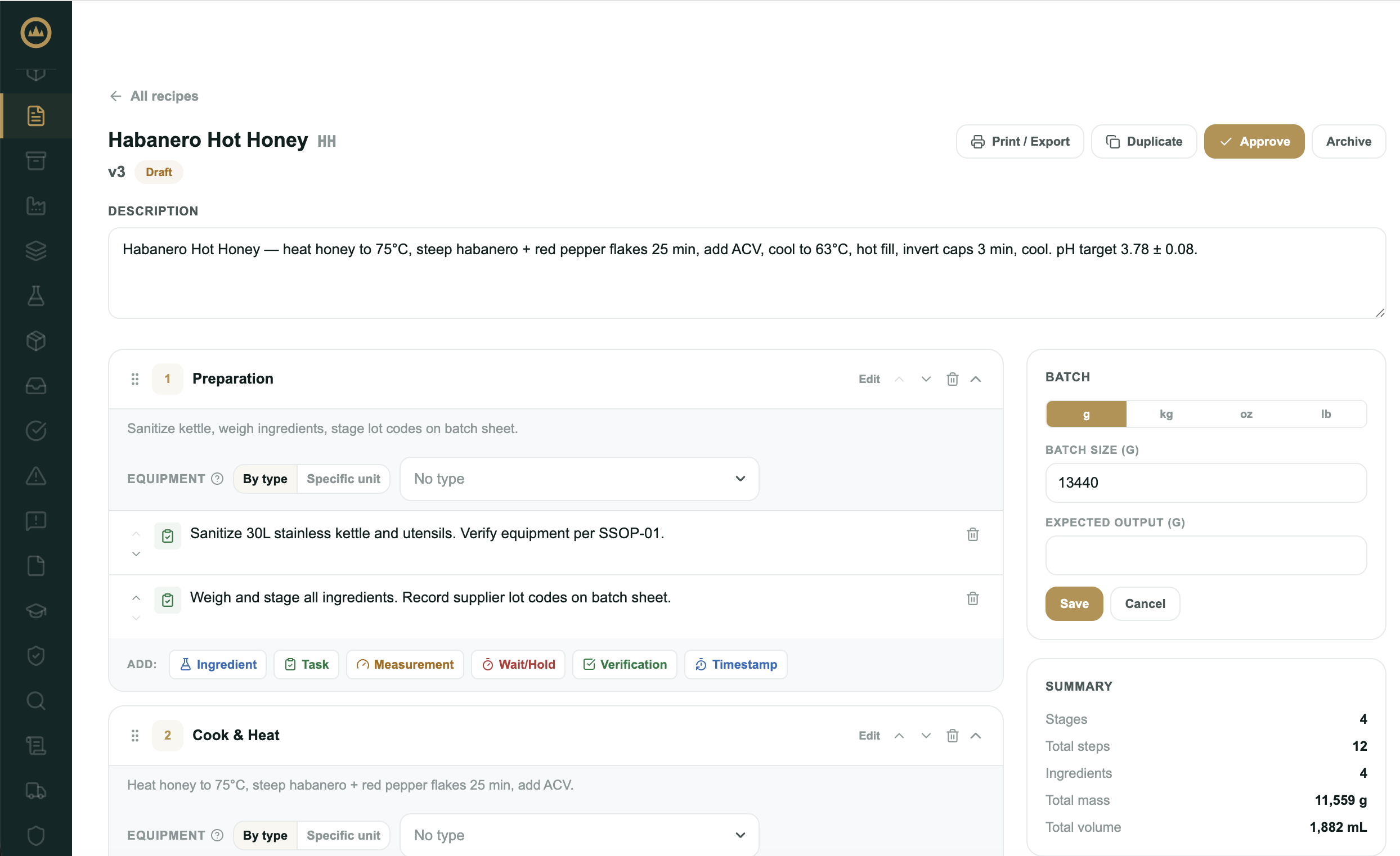
From the product, create a new recipe version. Enter the batch size and yield percentage from the AI output's Recipe version section.
- Add stages in order
Create each stage using the type the AI identified (active or holding). For holding stages, fill in the duration, check-in frequency, location, environment, and exit condition fields from the AI output.
- Add items to each stage
Within each stage, add items in the order listed. For ingredients, confirm the name matches your registered ingredient exactly before saving; Crown selects from your catalogue, not free-form text. For measurements, review the min/max range and CCP flag against your original document before accepting the AI's interpretation.
- Assign equipment
For stages with equipment, select the registered type or specific unit. If the AI flagged equipment that isn't yet in Crown, register it in your equipment catalogue first, then return to the stage.
- Review and approve
Review the complete recipe version against your original document. When satisfied it's accurate, approve the version with your e-signature to lock it for production.
What the prompt doesn't cover
CCP designations: the prompt flags potential CCPs based on language in your document, but the CCP checkbox on a measurement item carries compliance weight. Review every flagged measurement against your own process knowledge before designating it a CCP in Crown.
Recipe notes: Crown has a timestamped notes log separate from the recipe description. Supplementary notes from your original document that don't fit a stage or item can be added there after the recipe is created.
A note on yield
Crown captures yield two ways depending on where you enter it:
- At creation: enter yield as a percentage directly (e.g.
94) - In the editor: enter the expected output as an absolute value
(e.g.
940 mLfrom a1000 mLbatch), and Crown derives the percentage from this
The migration prompt outputs yield as a percentage, which matches the creation form. If you later adjust yield in the recipe editor, use the expected output field and let Crown calculate the percentage.