Getting Started
Your first recipe
How to create a recipe in Crown: ingredients, stages, yield, and saving your first version.
A recipe in Crown is the spec your batches are produced against. It defines the ingredients, their quantities, the production stages, and the expected yield. Every batch you produce is tied to a specific recipe version, so your records always reflect exactly what was in effect at the time of production.
Before you start
A few things need to be in place before you can build a recipe in Crown:
A product. Every recipe in Crown is a version of a product, and the product must already exist; you can't create one inline from the recipe form. The product's measurement type (mass, volume, or count) sets the unit family for the whole recipe. See Creating a product.
Ingredients. Every ingredient in the recipe must exist in your ingredient catalogue. Crown doesn't allow free-form ingredient entry during recipe creation. If you haven't added your ingredients yet, start with Setting up your ingredients.
Equipment. If any of your recipe stages reference equipment (a holding tank, a pH meter, a filling line), that equipment must be registered in Crown before it can be selected. See Setting up your equipment.
Once these are in place, also have your recipe spec ready:
- Ingredient quantities and units
- Expected batch size and unit (e.g. 10 L, 500 ml)
- The production stages, in order
- Expected yield as a percentage of batch size
Creating the recipe
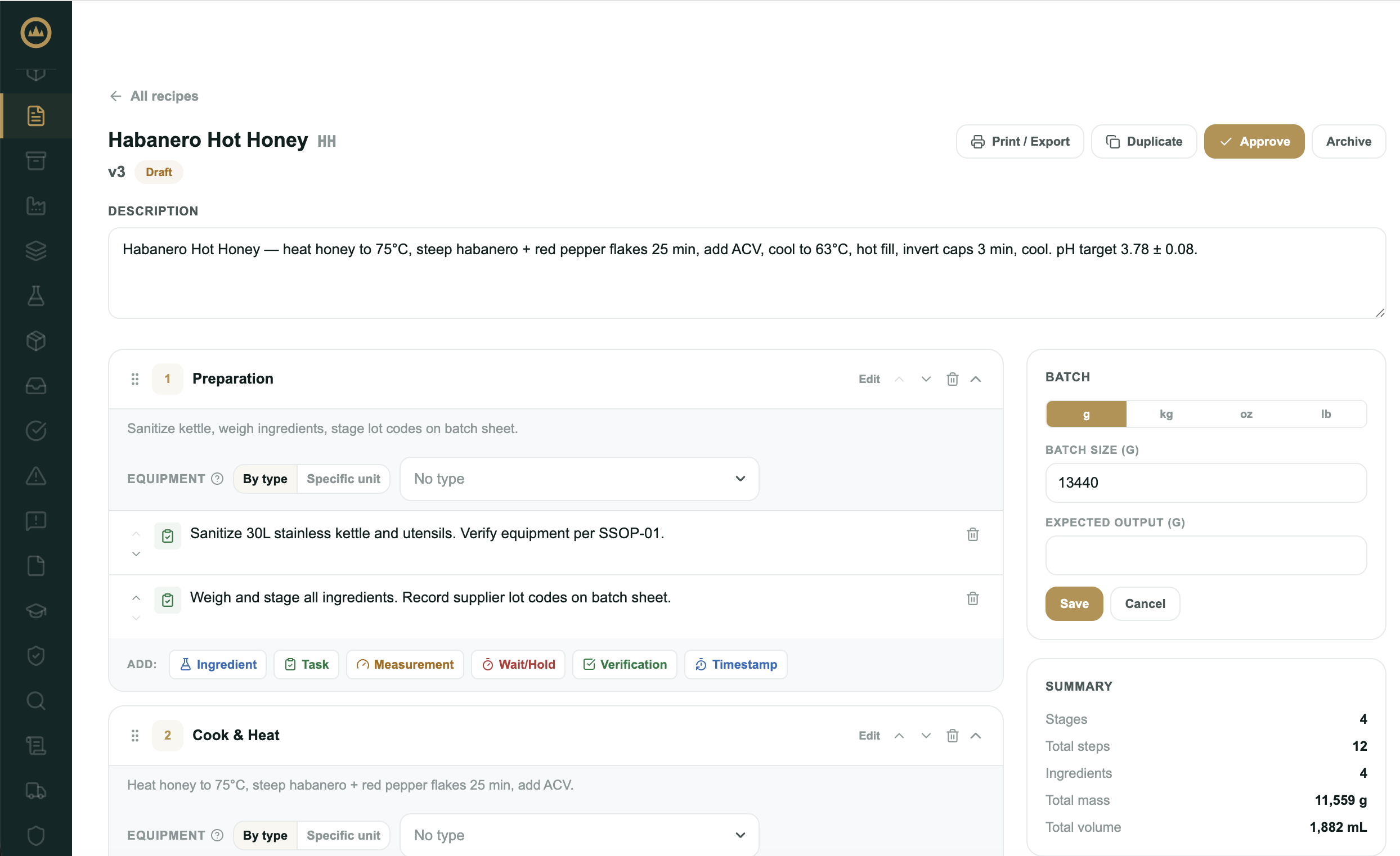
- Start a new recipe version
Open Recipes from the main menu and select New Recipe. Choose the product this recipe is for; the recipe is created as the next version of that product. (No product yet? Create it on the Products page first.)
- Set the batch size and yield
Enter your target batch size and unit. Set the expected yield percentage, your anticipated output relative to inputs. Crown records each batch's actual yield against this target so you can spot variance.
- Add your ingredients
Add each ingredient with its quantity and unit. Crown matches ingredients to your receiving records at batch time, so use names that are consistent with how you receive and label them.
- Add production stages
Add each stage in production order. A stage represents a discrete step in your process: mixing, heating, filling, and so on. You'll check each stage off when producing a batch.
- Save your draft
Save the recipe. Crown saves it as version 1 in draft status. Drafts are fully editable, but they can't yet be produced against.
- Approve it for production
When the recipe is complete and correct, approve it with your e-signature. Approval locks the version and makes it selectable when starting a batch; only approved versions are eligible for production.
What's next
With a recipe saved, you're ready to produce your first batch. The Your first batch article walks through the full production flow from start to release.