Getting Started
Setting up your equipment
How to register equipment types and specific units in Crown, configure calibration tracking, and manage equipment lifecycle.
Recipe stages in Crown can reference equipment in two ways: a general type (a holding tank, a filling line) or a specific registered unit (pH Meter PH-001). Both need to exist in Crown before they can be selected in a stage.
Equipment is managed under Facility → Equipment, which has sub-tabs for Instances and Types (a third sub-tab, Methods, catalogs consumable test kits such as pH strips and swabs). Set up your types first; instances require a parent type.
Step 1: Create equipment types
An equipment type defines a class of equipment: what it is, what category it belongs to, and whether it carries calibration requirements. Every specific unit you register must belong to a type.
- Open Facility → Equipment → Types
Navigate to Facility from the main menu, select the Equipment tab, then the Types sub-tab. Select Add type.
- Enter a name and short code
Give the type a descriptive name: "Holding tank," "Bench pH meter," or "Bottle filler." The short code (1–6 characters, auto-uppercased) is used as the prefix for auto-generated equipment codes and appears in the recipe stage picker. Keep it recognisable: "PH" for pH meters, "TK" for tanks.
- Select a category
Category determines what fields appear on instances of this type and how Crown treats them. The most important distinction: Measurement instrument enables the calibration tracking block on every instance. Choose the category that best describes what this type of equipment does.
- Save
Save the type. It's immediately available to assign to equipment units.
Equipment categories:
| Category | Use for |
|---|---|
| Processing | Mixing vessels, blending tanks, reactors |
| Filtration | Filter housings, membrane systems |
| Pasteurizer | Thermal processing equipment |
| Filling / Packaging | Fillers, cappers, labellers |
| Measurement instrument | pH meters, thermometers, refractometers, scales |
| Water system | RO units, water treatment equipment |
| Refrigeration | Walk-in coolers, reach-in fridges, glycol systems |
| Sanitation system | CIP systems, ozone generators |
| Sink | Utility and warewashing sinks |
| Sanitation sink | Dedicated sanitation sinks |
| Other | Anything that doesn't fit above |
Step 2: Register equipment units
With types in place, register the specific pieces of equipment in your facility.
- Open Facility → Equipment → Instances
Select the Instances sub-tab and choose Add equipment.
- Enter a name and assign a type
Name the unit specifically enough to identify it in your facility: "Bench pH meter," "Walk-in cooler A," or "100L holding tank." Select the type it belongs to. The type drives what fields appear next.
- Set or accept the equipment code
The code is your internal identifier for this unit (e.g. PH-001, TK-003). Leave it blank and Crown auto-generates one using the type's short code as a prefix, or enter your own. This code appears in recipe stage pickers and calibration records.
- Add identification details
Manufacturer, model, and serial number are all optional but useful for maintenance records and calibration documentation. Add what you have.
- Configure calibration (measurement instruments only)
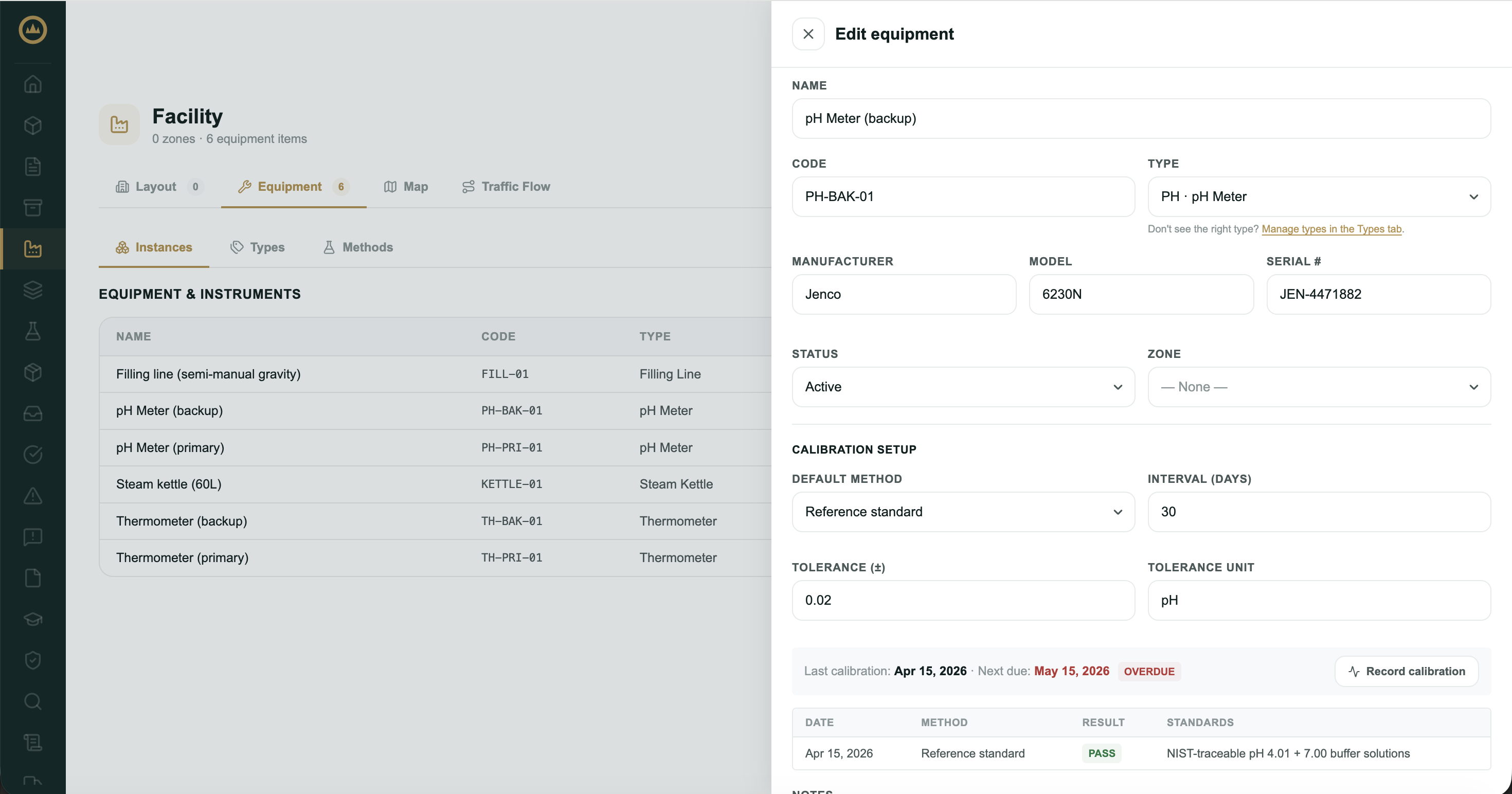
If the type is a Measurement instrument, a calibration setup block appears. Set the default calibration method, interval in days, and tolerance (± value and unit). These are configuration defaults; Crown derives next-due dates from the interval automatically once you start recording calibration events.
- Save
Save the unit. The equipment is now available to select in recipe stages.
Calibration tracking
Calibration in Crown has two separate parts that save independently.
Configuration: the method, interval, and tolerance fields on the equipment record. These save when you save the equipment unit. They define how calibration should be performed and what tolerance is acceptable.
Events: individual calibration records entered through the Record calibration drawer (available in edit mode). Each event captures the date, method used, standards referenced, and actual readings. Crown compares readings against your tolerance and automatically determines pass or fail. A tolerance must be set on the unit before an event can be recorded.
Recording a calibration event:
- Open the equipment unit in edit mode
Navigate to Facility → Equipment → Instances and open the unit. The Record calibration button is available in edit mode. If the unit has a printed QR label, scanning it from a phone offers a Record calibration shortcut that opens the unit in edit mode, where the same button is available.
- Enter the event details
Record the date, method used, and standards referenced. Add readings as rows; Crown shows a live pass/fail preview against your configured tolerance before you save.
- Save the event
Save the calibration record. If any reading falls outside tolerance, Crown automatically records the result as a fail and creates a deviation. A pass or adjusted result updates the equipment's last calibrated date and next due calculation.
- Attach the certificate
After saving, you're prompted to attach the calibration certificate or reading photos. This step is separate from saving the event record itself.
Where overdue calibration surfaces:
Crown flags overdue calibration in several places: the Next due cell in the Instances list turns red, the calibration block in the equipment drawer shows an Overdue badge, and the dashboard surfaces it too, in the Alerts card and the Compliance Health card's "Calibration overdue" group.
Equipment status and archiving
Crown has two separate mechanisms for equipment lifecycle; they behave differently and are easy to confuse.
Status (Active / Maintenance / Retired) is a soft label. You can set a unit to Retired or Maintenance at any time, but this does not remove it from recipe stage pickers. A retired unit is still selectable in recipe stages as long as it isn't archived.
Archive permanently removes the unit from lists and pickers. Calibration history is retained. Use archive when a piece of equipment leaves your facility and should no longer appear anywhere in Crown.
Archiving equipment types has an additional guard: a type cannot be archived while any units are assigned to it. Reassign or archive all instances first, then archive the type.
How equipment appears in recipe stages
When building a recipe stage, the equipment picker shows:
- By type: displays as "Name (SHORT_CODE)," e.g. "pH meter (PH)." References the capability, not a specific unit. The batch record captures which actual unit was used at production time.
- Specific unit: displays as "Name (equipment_code)," e.g. "Bench pH meter (PH-001)." Binds the stage to that exact unit.
Archived units are hidden from both pickers. Units with a status of Maintenance or Retired remain visible, so archive the unit if you don't want it appearing as an option.